
Installed font not showing up: causes and fixes

If a font you just installed doesn't appear in Word, Photoshop or another app, it's usually one of a few causes: the app was already running before you installed it, the font is installed only for your user account, the file has the wrong format, or the same font is installed twice. Work through the steps below in order; the most likely fix comes first.
How it works

  1. 1

    Restart the app

    Many apps read the font list only at startup. Close the app completely and open it again.

  2. 2

    Check the installation

    Make sure the font really is installed: on Windows under Settings → Personalization → Fonts, on a Mac in Font Book.

  3. 3

    Install for all users

    On Windows, uninstall the font and reinstall it with right-click → "Install for all users". That helps with older apps and with apps running with administrator rights.

  4. 4

    Check the format

    Desktop apps need TTF, OTF or TTC files. WOFF and WOFF2 files are web fonts and can't be installed.

  5. 5

    Remove duplicate fonts

    If the same font is installed in several versions, or as both OTF and TTF, apps sometimes show the wrong one or none at all. Keep only one version installed.

  6. 6

    Restart your computer

    If nothing else helps, restart your computer so every app and system service loads the font list fresh.

Causes in specific apps

  • Word and Office: new fonts only appear after you restart Word. Office sometimes shows a variable font with just one style; install the font's static files then.
  • Photoshop and Illustrator: check whether a filter is active in the font menu, for example for favorites or Adobe Fonts. Also search for the font's family name, which can differ from the file name.
  • Apps running with administrator rights: they may not find fonts installed only for your user account. Install the font for all users then.

Resetting the font cache on Windows

If Windows shows an installed font wrong or not at all even though everything else checks out, the font cache may be corrupted. To reset it (this needs administrator rights):

  • Open Services (press the Windows key, type "services.msc") and stop the "Windows Font Cache Service".
  • Delete the contents of the folder C:\Windows\ServiceProfiles\LocalService\AppData\Local\FontCache.
  • Restart your computer. Windows then rebuilds the cache.

Checking fonts on a Mac

Font Book can check fonts for problems and flags fonts that are installed twice with a warning. Select the font and validate it from the "File" menu. You can deactivate or remove damaged or duplicate fonts right there.

Less hassle with the typest.app font manager

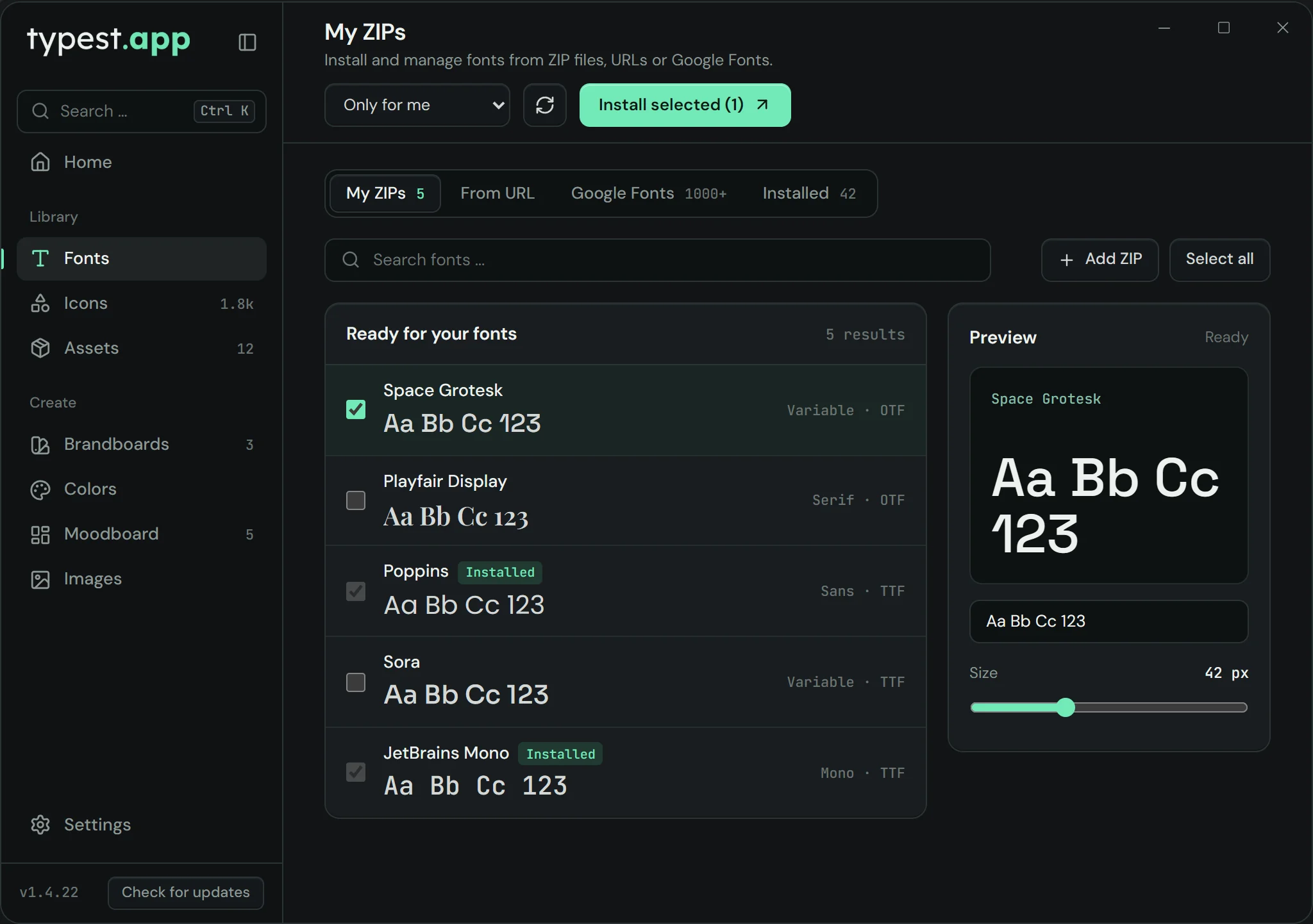
The free typest.app font manager installs TTF, OTF and TTC files straight from ZIPs and, on Windows, registers new fonts with the system right away. "Installed" lists every font on your computer, so you can see at a glance whether a font really is installed and remove the ones you no longer need in one click.

typest.app font manager: font list with preview, fonts that are already installed are marked

Frequently asked questions

Why isn't my font showing up in Word?

Restart Word. If that doesn't help, install the font for all users and check that it's a TTF or OTF file. Word sometimes handles variable fonts only partly; use the static files then.

Why can't I find the font in Photoshop?

Restart Photoshop and check whether a filter is active in the font menu. Search for the font's family name; it can differ from the file name.

Can I install a WOFF file?

No. WOFF and WOFF2 are compressed web fonts for websites. Download the font as TTF or OTF instead; Google Fonts gives you that format automatically.

Do I have to restart my computer after installing a font?

Usually not. Restarting the app you want to use the font in is enough. Restarting the computer is only the last step when nothing else helps.